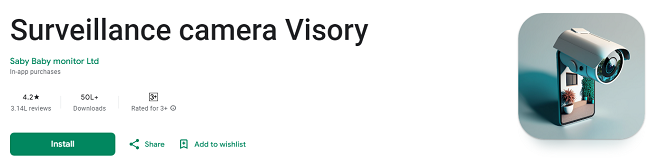
Visory Camera App - Download on Your Android & iOS Devices
In today’s fast-paced world, security and monitoring solutions are more essential than ever before. Whether you’re concerned about your home’s safety, keeping an eye on your pets, or checking in on elderly loved ones, having an easy-to-use, reliable surveillance system can provide peace of mind. Visory Camera is one such solution that turns your smartphone or tablet into a powerful CCTV camera system.
This guide will take you through everything you need to know about downloading and using the Visory Camera App on both Android and iOS devices. With its comprehensive set of features, including live streaming, motion detection, cloud storage, and simultaneous monitoring, this app is the ultimate tool for home security, pet care, and elderly monitoring.
What is Visory Camera App?
The Visory Camera App is a powerful surveillance tool that transforms your smartphone into a CCTV camera, allowing you to monitor your home, pets, or loved ones from anywhere, at any time. Whether you're interested in a pet monitoring solution, an elderly care monitor, or a home security system, this app delivers all the features you need for remote surveillance.
Key features of Visory Camera include:
Multiple live stream feeds
Motion and sound detection
Cloud storage for recordings
Cross-platform compatibility (Android and iOS)
Easy setup with QR code scanning
Real-time alerts for unusual activities
One-time payment for lifetime access
Now that you understand the features and benefits of the Visory Camera App, let’s dive into how to download and use it on your Android and iOS devices.
How to Download Visory Camera App on Your Android Device?
If you're an Android user, downloading the Visory Camera App is a simple process. Follow these steps to get started:
Step 1: Open Google Play Store
To begin, open the Google Play Store on your Android device. This is where you’ll find and install the Visory Camera app.
Step 2: Search for "Visory Camera"
In the search bar at the top of the Google Play Store, type "Visory Camera" and press Enter or tap the magnifying glass icon. This will bring up a list of apps related to your search.
Step 3: Select the Visory Camera App
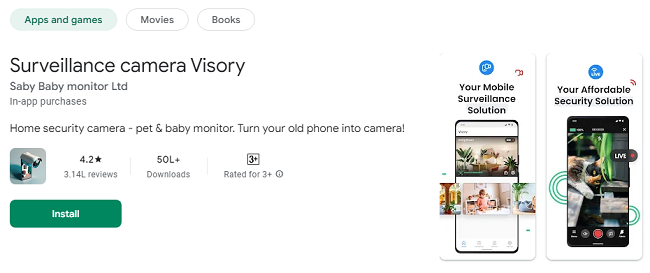
Look for the official Visory Camera app in the search results. The app should be listed with the logo and developer details. Tap on the app name to open the app’s page.
Step 4: Tap "Install"
On the Visory Camera app page, you’ll see an Install button. Tap Install, and the app will begin downloading and installing on your device. This process typically takes just a few moments, depending on your internet connection.
Step 5: Open the App
Once the installation is complete, tap the Open button to launch the Visory Camera app. You’ll be prompted to either create a new account or log in to an existing account.
How to Download Visory Camera App on Your iOS Device?
If you're using an iPhone or iPad, follow these steps to download and install the Visory Camera app from the App Store:
Step 1: Open the App Store
Open the App Store on your iOS device. This is where you can find and download all of your apps.
Step 2: Search for "Visory Camera"
In the App Store search bar, type "Visory Camera" and tap the Search button.
Step 3: Select the Visory Camera App
Once the search results load, find the official Visory Camera app and tap on it. Be sure to choose the app developed by the trusted developer listed on the app page.
Step 4: Tap "Get"
On the Visory Camera app page, tap the Get button. If required, authenticate the download using your Apple ID password, Face ID, or Touch ID.
Step 5: Launch the App
Once the download is complete, tap Open to launch the Visory Camera app. Like on Android, you'll be prompted to either log in or create a new account.
How to Set Up Visory Camera on Your Devices
Now that you've downloaded the app, it’s time to set it up. Follow these steps to get Visory Camera up and running on your Android or iOS device.
Step 1: Account Creation or Login
New Users: If you’re new to Visory Camera, tap the option to Create a New Account. You’ll be asked to provide your email address, create a password, and confirm your account details.
Existing Users: If you already have a Visory Camera account, simply log in using your credentials (email and password).
Step 2: Scan the QR Code
To link your devices for video streaming, Visory Camera uses a simple and convenient QR code scanning method. Here’s how to set it up:
Once you're logged in, you’ll be prompted to set up your devices for monitoring.
On the device that you want to use as your monitor (the device you will view the video feed on), choose the "Monitor" option.
On the device that you want to use as the camera (the device that will capture the video), choose the "Camera" option.
A QR code will appear on the monitor device. Use your camera device to scan this code, and the two devices will automatically link up.
Step 3: Adjust Settings and Configure Alerts
Once your devices are connected, you can fine-tune the settings to meet your needs. Visory Camera offers a variety of customization options, including:
Motion and Sound Detection: Enable this feature to receive instant alerts if motion or sounds are detected in the monitored area. This is especially useful for pet monitoring or home security.
Baby Cry and Bark Detection: If you're using the app as a baby monitor or pet monitor, you can enable this feature to receive alerts when a baby is crying or when your pet is barking.
Cloud Storage: Set up cloud storage to automatically save all video recordings for later access. This ensures you never lose important footage.
How to Use Visory Camera for Home Security?
Visory Camera is not just a tool for monitoring pets or elderly family members—it also doubles as a robust home security system. Here’s how to make the most of Visory Camera for home protection:
1. Set Up Multiple Live Streams
You can use multiple devices to monitor different areas of your home. For example, set up one device by your front door, another in your living room, and another in the backyard. Visory Camera allows you to view all these streams simultaneously, giving you complete coverage of your home.
2. Real-Time Alerts
Enable motion detection and sound detection to receive instant notifications if there’s any suspicious activity. This feature is perfect for preventing break-ins, as it will notify you right away if someone enters your home or if there’s any movement in a room you’re monitoring.
3. Secure Your Footage
Visory Camera stores all recordings securely in the cloud. This means that even if your device gets lost or damaged, your footage is still safe and accessible. You can retrieve and view your recordings from any device with your account credentials.
How to Use Visory Camera for Pet Monitoring?
If you have pets and want to keep an eye on them while you’re away, Visory Camera is the ideal solution. Here’s how to use it for pet monitoring:
1. Monitor Your Pet’s Behavior
Place one device in the room where your pet spends most of their time. Use the other device to monitor your pet from anywhere, whether you’re at work or on vacation. The real-time video feed allows you to check on your pet’s well-being and prevent them from getting into trouble.
2. Bark Detection Alerts
Enable bark detection to receive alerts whenever your dog starts barking. This feature is particularly useful for pets with separation anxiety, as it lets you know if your dog is distressed while you’re away.
3. Interactive Monitoring
With live streaming, you can watch your pet in real time and ensure they’re not feeling anxious or bored. This gives you peace of mind and helps you stay connected to your furry friends no matter where you are.
How to Use Visory Camera for Elderly Monitoring?
Visory Camera is also a great tool for monitoring elderly family members. Here’s how to use it:
1. Create a Safe Environment
Place a device near your elderly loved one’s living space. You can monitor their activity in real time and ensure they’re safe. This is especially useful if they are prone to accidents or if you’re concerned about their well-being.
2. Baby Cry and Motion Detection Alerts
Enable baby cry or motion detection alerts to notify you immediately if there is an emergency, such as a fall or an unexpected movement. This can provide quick response times, especially if your elderly loved one is living alone.
3. Cloud Storage for Peace of Mind
Store recordings in the cloud to keep a detailed log of your elderly family member’s daily activities. This feature helps you track their routines, ensuring they are following prescribed routines or simply giving you peace of mind when you’re unable to visit frequently.
Troubleshooting Common Issues
While the Visory Camera App is easy to use, you might run into occasional issues. Here are some common troubleshooting tips:
1. App Not Connecting to Devices
Ensure both devices are connected to the same Wi-Fi network. If you're experiencing connection issues, try restarting your devices or re-scanning the QR code.
2. Live Stream Lag or Buffering
If you notice lag or buffering in the live video feed, check your internet connection. A stable Wi-Fi connection with high bandwidth is crucial for smooth video streaming.
3. No Alerts for Motion or Sound Detection
Double-check that motion and sound detection are enabled in the app’s settings. Also, make sure the sensitivity levels are appropriately adjusted to capture the required movements or sounds.
Conclusion
Downloading and using the Visory Camera App is a straightforward process, whether you’re using an Android or iOS device. With its powerful features, including cloud storage, motion detection, and live streaming, the app offers an affordable and efficient way to monitor your home, pets, or elderly loved ones. It’s easy to set up, highly customizable, and provides the peace of mind you need in today’s busy world.
Now that you know how to download and use Visory Camera, it’s time to take advantage of its full potential. Whether you’re at home or on the go, you can stay connected and ensure the safety and well-being of those you care about most. Download the app today and start enjoying a new level of security and monitoring!
Updates