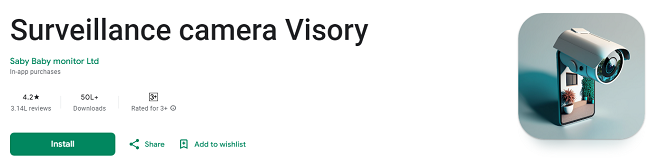
How to Cancel Visory Camera Subscription: Step-by-Step Guide
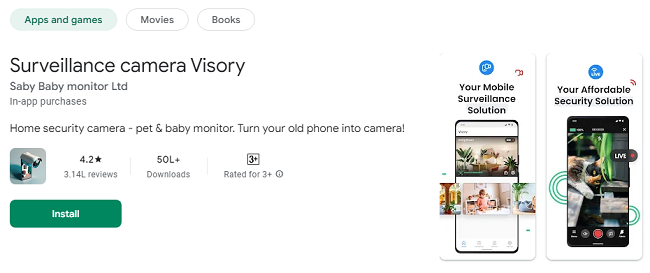
The Visory Camera App is a powerful tool for home security, pet monitoring, and elderly care, offering features like live streaming, motion detection, and cloud storage. It’s a great way to ensure peace of mind, whether you're monitoring your home or caring for loved ones. However, circumstances may arise where you need to cancel your Visory Camera subscription. Whether it's due to budget constraints, a change in your monitoring needs, or simply wanting to switch to a different service, canceling your subscription is straightforward, but it's important to know the correct procedure to avoid unnecessary charges.
In this guide, we’ll walk you through everything you need to know about canceling your Visory Camera subscription. We’ll cover how to cancel your subscription via the Visory Camera App, through Google Play Store, and via the Apple App Store, depending on your device. We’ll also provide troubleshooting tips and explain what happens to your data and access after cancellation.
Why You Might Want to Cancel Your Visory Camera Subscription
Before we dive into the specifics of how to cancel, let’s briefly go over some reasons why you might decide to unsubscribe from Visory Camera’s premium plan.
Financial Constraints: Subscriptions can add up over time. If you need to cut costs, canceling unnecessary subscriptions like Visory Camera can be a way to save.
Changed Monitoring Needs: Perhaps your monitoring needs have changed. You might no longer need the advanced features provided by the Visory Camera App, such as cloud storage, motion detection alerts, or simultaneous live streaming.
Switching to Another App or Service: There are many other camera and surveillance apps on the market. If you’ve found a service that better fits your needs or is more affordable, it might make sense to switch.
Temporary Pause in Service: If you want to take a break from using the app but may return later, canceling your subscription (rather than deleting your account) might be a good idea. This way, you can retain your data and settings for future use.
No matter your reason, this guide will help you navigate the cancellation process smoothly.
Step-by-Step Guide to Cancel Visory Camera Subscription
Step 1: Canceling Your Visory Camera Subscription on Android (Google Play Store)
If you subscribed to the Visory Camera premium plan using your Android device through the Google Play Store, canceling your subscription involves a few simple steps. Here’s how to do it:
1.1. Open the Google Play Store App
On your Android device, open the Google Play Store app.
Make sure you are signed in to the Google account you used for the Visory Camera subscription.
1.2. Access Your Subscriptions
Tap on the three horizontal lines in the upper-left corner to open the menu.
From the menu, select "Subscriptions".
1.3. Locate Visory Camera Subscription
In the Subscriptions menu, you will see a list of all the active subscriptions linked to your Google account.
Look for the Visory Camera subscription in the list.
1.4. Cancel the Subscription
Tap on the Visory Camera subscription to view its details.
Click the "Cancel Subscription" button.
You may be prompted to select a reason for canceling. Choose an option from the list or skip this step.
Confirm your cancellation.
1.5. Confirmation
Once you’ve canceled your subscription, you should see a confirmation message. Google will send you an email confirming the cancellation, and your subscription will remain active until the next billing cycle, at which point access to the premium features will be removed.
Step 2: Canceling Your Visory Camera Subscription on iOS (Apple App Store)
If you subscribed to the Visory Camera App using your Apple device via the Apple App Store, the cancellation process is also straightforward. Here’s what you need to do:
2.1. Open Settings on Your iPhone or iPad
On your iPhone or iPad, open the Settings app.
Tap on your name at the top of the Settings menu.
Next, select "Subscriptions".
2.2. Find Your Visory Camera Subscription
In the Subscriptions menu, you will see a list of all active subscriptions associated with your Apple ID.
Find and tap on the Visory Camera subscription.
2.3. Cancel the Subscription
After selecting the Visory Camera subscription, you will see the subscription details, including the renewal date and the plan you are currently subscribed to.
Tap on the "Cancel Subscription" option at the bottom of the screen.
If prompted, confirm your cancellation.
2.4. Confirmation
Once the cancellation is processed, you’ll receive a confirmation email from Apple. Your premium features will remain available until the end of the current billing period, after which your account will revert to the free version of the app.
Step 3: Canceling Your Visory Camera Subscription via the Web (For Both Android and iOS Users)
If you prefer to cancel your Visory Camera subscription using a computer or a web browser, the process is also simple and straightforward. Visory allows you to manage your subscriptions through its website.
3.1. Log In to Your Visory Camera Account
Open your preferred web browser and go to the official Visory Camera website (www.visorycamera.com).
Log in to your account using your email address and password.
3.2. Access Account Settings
Once logged in, navigate to your Account Settings or Subscription Management section.
Find the Subscription tab or option where your current plan is listed.
3.3. Cancel Subscription
Click on Cancel Subscription. You may be asked to confirm the cancellation and provide feedback on why you’re canceling.
After confirmation, your subscription will be canceled.
3.4. Confirmation
Visory Camera will send a confirmation email to the address associated with your account, notifying you that the cancellation was successful.
Step 4: What Happens After You Cancel Your Subscription?
Once you cancel your Visory Camera subscription, here’s what you can expect:
Access Until the End of the Billing Cycle: After canceling, you’ll still have access to all premium features until the end of the current billing period. You won’t lose access immediately after canceling.
Reverting to Free Plan: After the billing cycle ends, your account will revert to the free version of the Visory Camera App, which may have limitations such as fewer features, fewer devices linked, or ads.
Data Retention: Visory typically retains your data after cancellation. However, if you decide to delete your account or uninstall the app, you may lose access to saved data, recordings, and settings.
Billing Confirmation: You will receive an email confirmation after the cancellation, which includes the details of your last payment and when your subscription will officially end.
Step 5: Troubleshooting: What If You Encounter Issues?
While canceling a subscription on the Visory Camera App is relatively straightforward, there are instances when you may run into issues. Here are some common problems and solutions:
5.1. Not Seeing the Cancel Option
Solution: Ensure you’re signed in to the correct account and that the subscription is active. Sometimes, canceling a subscription requires you to be logged in with the same account used to subscribe to the service.
5.2. Subscription Doesn’t Cancel Immediately
Solution: Subscriptions often remain active until the end of the current billing cycle. If you’ve followed the cancellation process, but the subscription still shows as active, check your billing date and verify that your cancellation has been processed.
5.3. No Confirmation Email
Solution: If you didn’t receive a confirmation email, check your spam or junk folder. If it’s not there, log into the Visory Camera app or website and check your subscription status. If it’s still active, the cancellation might not have gone through.
5.4. Getting Charged After Cancellation
Solution: If you’re charged after canceling, contact Visory Camera customer support immediately. Provide them with the relevant details, including the email address associated with your account and the date of cancellation. They should be able to help you resolve the issue.
Conclusion
Canceling your Visory Camera subscription is a simple process, whether you’re using an Android device, an iOS device, or even the Visory Camera website. By following the steps outlined in this guide, you can cancel your subscription easily and avoid any future charges.
If you’re canceling due to budgetary reasons or a change in your monitoring needs, remember that you’ll still have access to the app’s basic features until the end of your current billing cycle. Should you wish to return to the service later, your account will remain intact, allowing you to resume your subscription without losing your settings or data.
Always ensure that you receive a confirmation of your cancellation, and if any issues arise, don’t hesitate to reach out to customer support for assistance.
Updates